
Multi Vendor SKU for
Zoho Books
Multi Vendor SKU is a Zoho Books extension that fills each vendor's own SKU on your purchase orders and bills, built for businesses that buy the same items from several vendors.
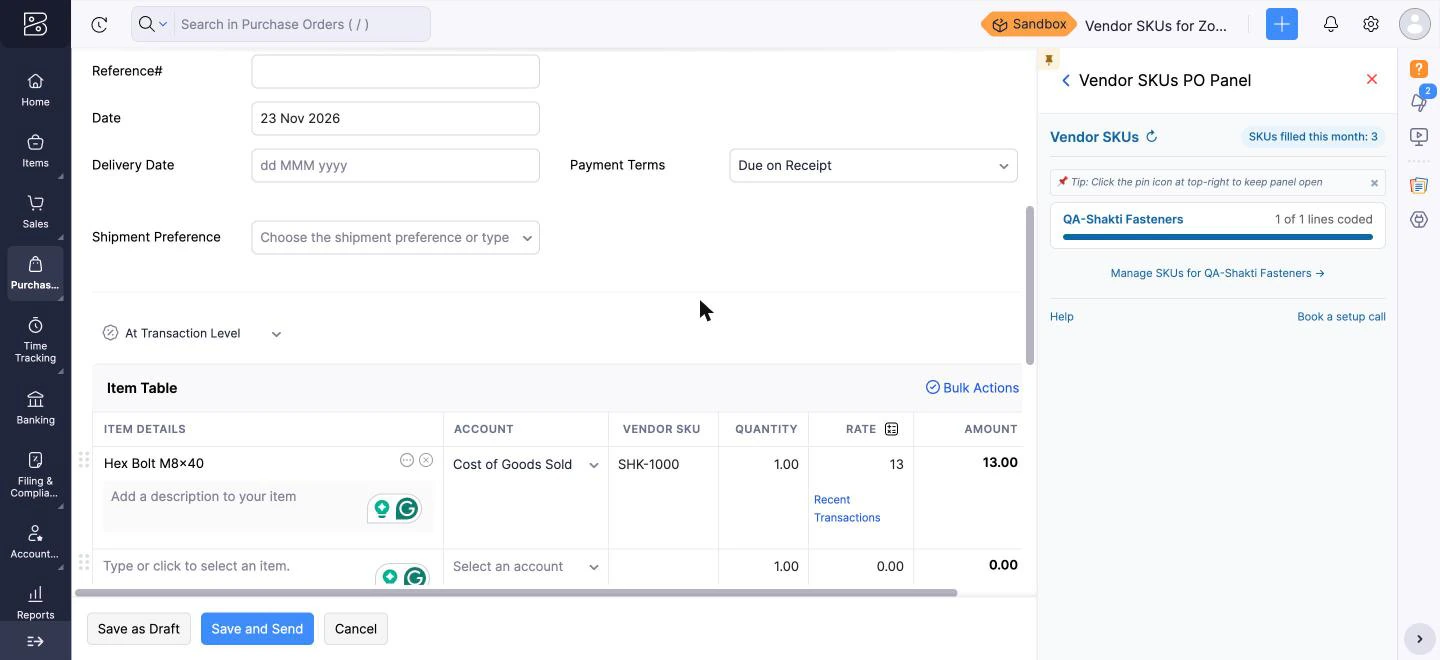
What is Multi Vendor SKU?
Multi Vendor SKU for Zoho Books is an extension that stores a different SKU for each vendor you buy an item from. It fills those vendor SKUs on purchase orders and bills, so your team stops typing vendor codes by hand and stops matching vendor bills to items by eye. It runs inside Zoho Books, installs from Zoho Marketplace, and keeps every SKU in your own Zoho account.
- Works with
- Zoho Books with purchase orders turned on, any data centre
- Install from
- Zoho Marketplace
- Built for
- Traders, small distributors, workshops, contractors and service firms that buy parts from several vendors in Zoho Books
- Your data
- Stays in your Zoho Books account
- Language
- English
- Price
- $29 per organization per month
- Support
- hello@amatec.in
- Also by Amatec
- Multi Vendor SKU for Zoho Inventory
- Custom work
- Zoho workflow automation
Your vendors use their own codes for your items
Your item "Hex Bolt M8x40" is "SHK-1000" at one vendor and "BB-77" at another. Zoho Books stores one SKU per item, so the vendor codes have nowhere to go.
- A spreadsheet on the side Your team keeps vendor codes in a sheet outside Zoho Books and looks them up for every order.
- Codes typed by hand Each purchase order line gets the vendor's code typed in, one line at a time.
- Bills matched by eye When the vendor's bill arrives, someone reads each line and works out which of your items it is.
- One vendor SHK-1000
- Another vendor BB-77
How it works, in 3 steps
You set it up once, from the purchase history already in your Zoho Books account.
-
01
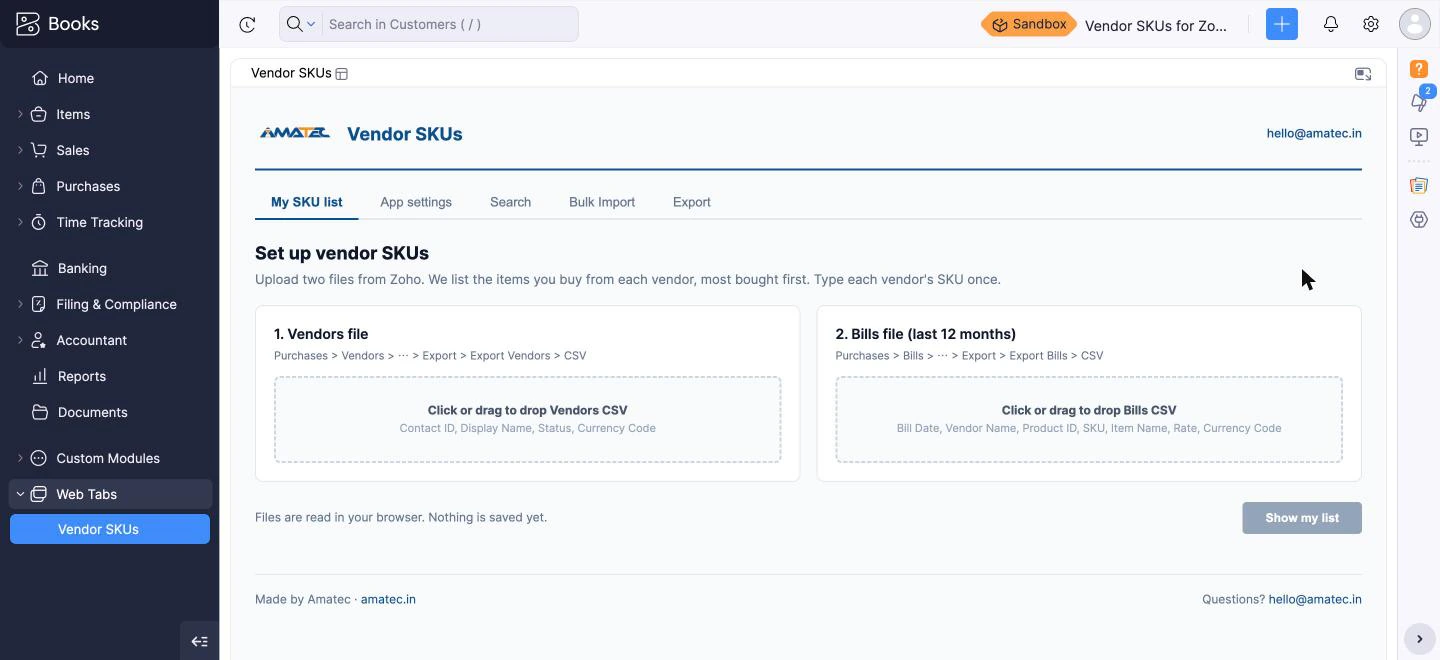
Export two files and drop them in
Export Vendors and Bills from Zoho Books as CSV files and drop both into setup. The app lists every item you have bought from each vendor, with your own SKU, how often you bought it and the last price you paid.
-
02
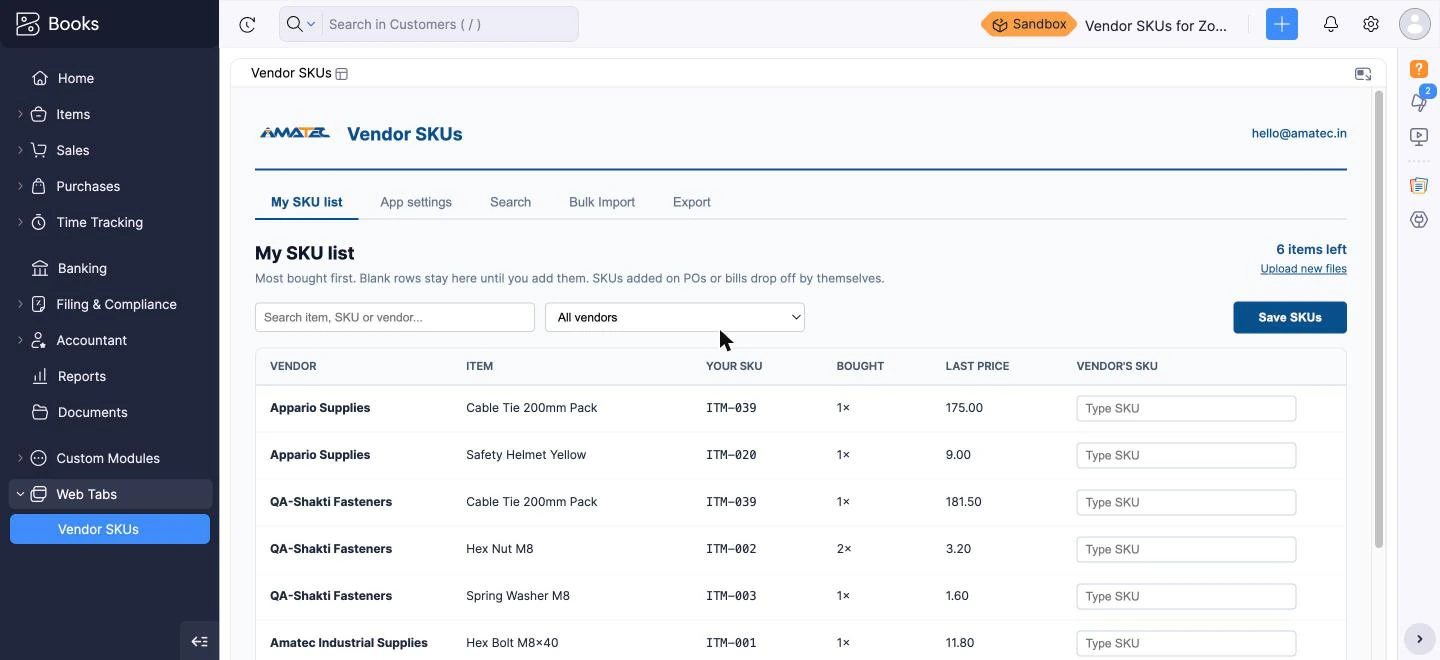
Type each vendor's SKU once
Type the vendor's SKU next to each item and click Save SKUs. Rows you have not finished stay in My SKU list until you come back to them.
-
03
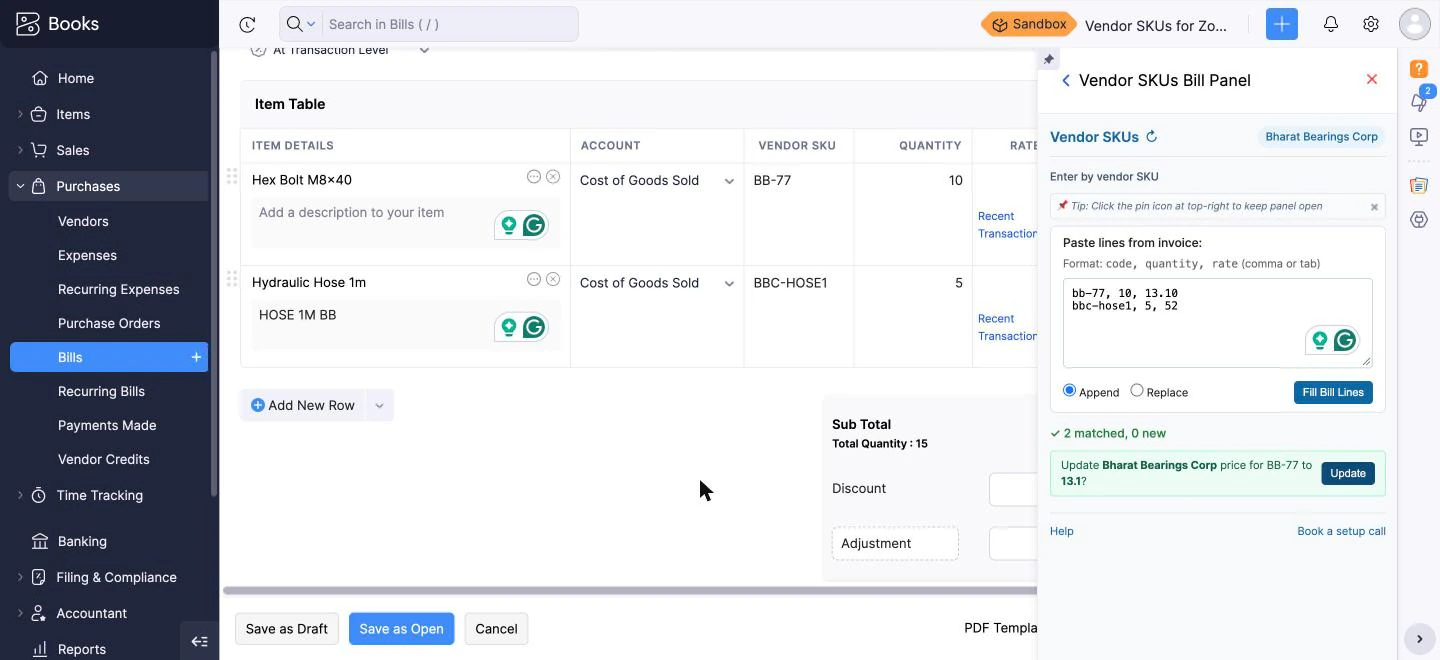
SKUs fill on every PO and bill
Pick a vendor on a new purchase order and that vendor's SKU appears on each line. When the vendor's bill arrives, paste its lines and the app finds your items by the vendor's SKU.
What Multi Vendor SKU does on your POs and bills
The six features teams use most, then three more that come with the app.
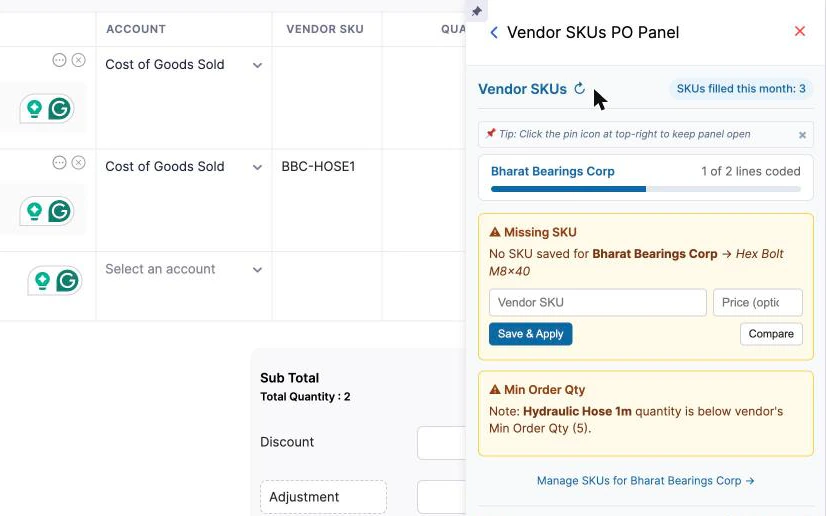
SKUs switch with the vendor
Pick a vendor on a new PO and its SKU appears on each line. Change the vendor and the SKUs switch to the new vendor's codes.
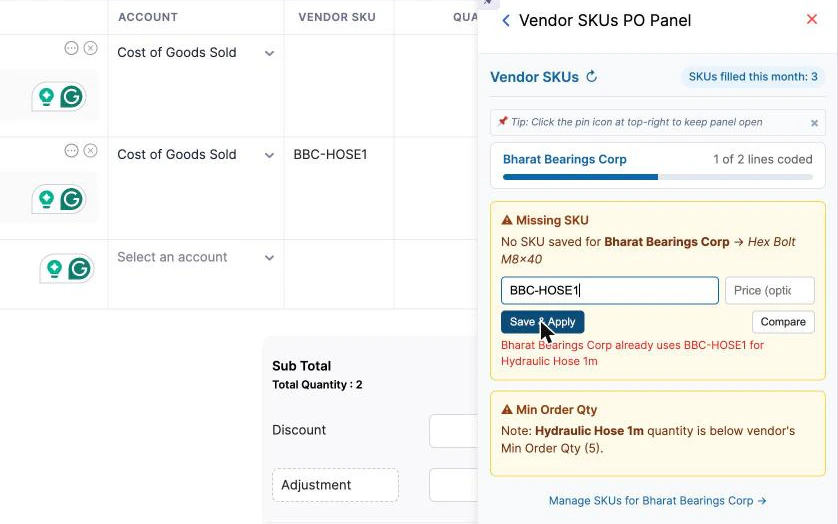
Add a missing SKU from the PO
Add a SKU from the PO side panel without leaving the order. The app blocks a SKU that the same vendor already uses for another item.
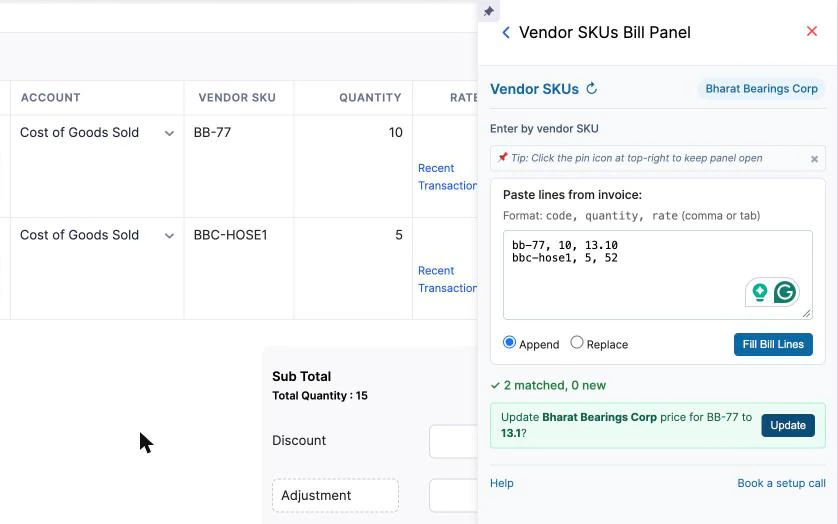
Match vendor bills by SKU
Paste the lines from a vendor's bill. The app finds your items by the vendor's SKU, in upper or lower case, and fills the bill lines.
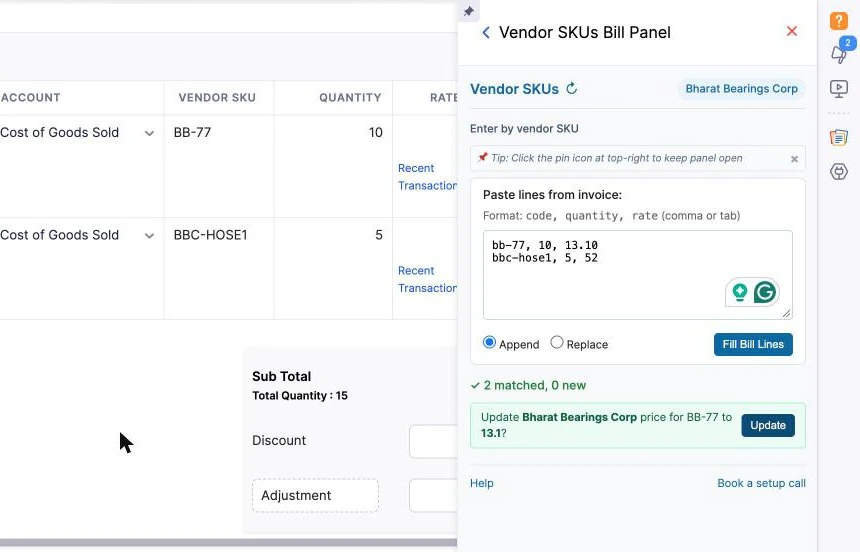
Spot a price change
When a bill's rate differs from the price saved for that vendor, a card offers to update the saved price in one click.
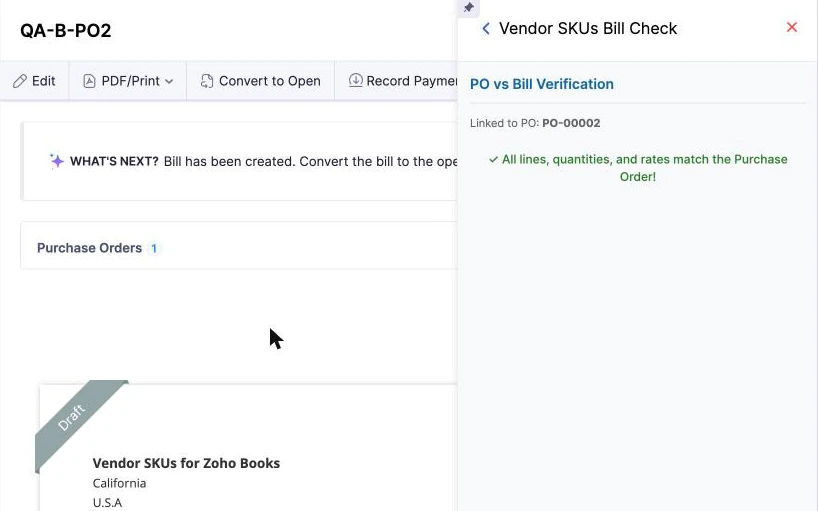
Check a bill against its PO
On a saved bill, the Bill Check side panel compares every line, quantity and rate with its purchase order.
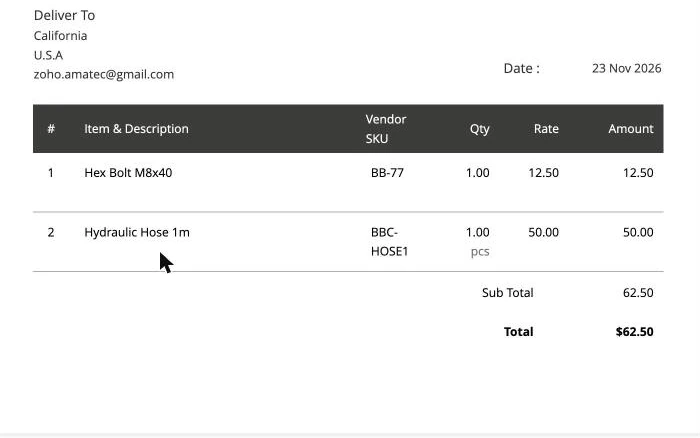
Vendor SKU on the PO PDF
The vendor's SKU prints on the purchase order you send, so the vendor recognises every line.
- Minimum order warning Warns when a PO line is below the vendor's minimum order quantity. You set minimum orders with Bulk Import.
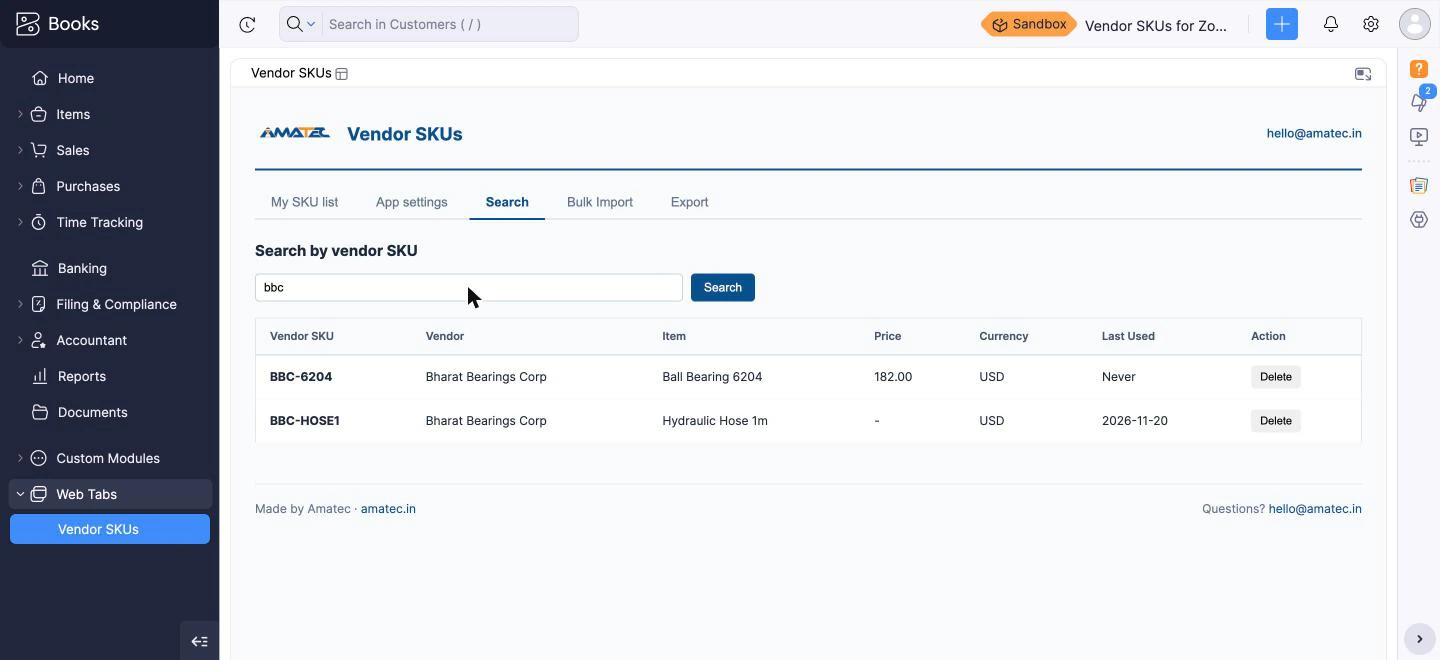
- Search, Bulk Import and Export Find any SKU, load many at once from a CSV file, and export them all.
- Usage counter Shows how many SKUs the app filled this month.
Buying in Zoho Books with and without Multi Vendor SKU
| Task | Without the app | With Multi Vendor SKU |
|---|---|---|
| Vendor codes on a PO | Looked up in a spreadsheet and typed on each line | Filled on each line when you pick the vendor |
| Changing the vendor on a PO | Every code retyped for the new vendor | The SKUs switch to the new vendor's codes |
| Matching a vendor's bill | Each line matched to an item by eye | Paste the bill lines and the app finds your items by vendor SKU |
| Where vendor codes are kept | A spreadsheet outside Zoho | A Vendor SKUs module in your own Zoho Books account |
| Getting the right item | The vendor reads your item code and has to work out which of theirs you mean | The vendor's own SKU prints on the PO PDF, so they recognise every line |
Watch Multi Vendor SKU in Zoho Books
A five minute walkthrough of the full flow, from setup to Bill Check.

How Multi Vendor SKU works inside Zoho Books
The parts of the app, in the order you meet them. Each one runs inside your Zoho Books account.
-
01
Install from Zoho Marketplace
You install Multi Vendor SKU in Zoho Books from Zoho Marketplace and authorize one Zoho Books connection.
-
02
Vendor SKUs tab
The app's own tab in Zoho Books. Run the guided setup here, work through My SKU list, change app settings, and search, import or export your SKUs.
-
03
Vendor SKUs module
Every SKU you save is a record in a custom module called Vendor SKUs, inside your own Zoho Books account.
-
04
Vendor SKU item field
A custom item field called Vendor SKU. It shows on purchase order lines and prints on the PO PDF.
-
05
Purchase order side panel
Pick a vendor on a purchase order and each line gets that vendor's SKU. Add a missing SKU from the side panel. The app warns when a line is below the vendor's minimum order quantity.
-
06
Bill side panel
Paste the lines from the vendor's bill. The app finds your items by vendor SKU, fills the bill lines and adds the vendor's own item name to the description. A price change card shows when the bill's rate differs from the price saved for that vendor.
-
07
Bill Check panel
On a saved bill, the Bill Check panel compares every line, quantity and rate with the linked purchase order.
-
08
Uninstall
Remove the extension from Zoho Books settings. Export your SKUs to CSV first if you want to keep a copy.
Where your data lives
- Every vendor SKU is stored in your own Zoho Books account, in the Vendor SKUs module.
- The app reads your items, vendors, purchase orders and bills inside Zoho to do its job. It does not copy them out of Zoho.
- On install and uninstall only, the app sends Amatec your organization ID, organization name, the installer's email (install only), the date and the app version. We use it to send one setup guide email, give support and manage the subscription.
- Full details: Privacy Policy, section 07 Zoho Marketplace apps.
Questions, answered
It is a Zoho Books extension that stores the SKU each vendor uses for your items. It fills those SKUs on purchase orders and bills, and matches vendor bills back to your items by the vendor's SKU. You install it from Zoho Marketplace.
Yes. Each item can have its own SKU at every vendor you buy it from. When you pick a vendor on a purchase order, the app fills that vendor's SKU on the line.
No. Your own item SKU stays as it is. Vendor SKUs are saved separately, in the Vendor SKUs module and the Vendor SKU item field.
Export Vendors and Bills from Zoho Books as CSV files and drop both into setup in the Vendor SKUs tab. The app lists every item you have bought from each vendor, most bought first, and you type each vendor's SKU once. You can also add a SKU from the purchase order panel or load many from a CSV file with Bulk Import.
Yes. On a new bill, paste the lines from the vendor's bill in the Bill panel. The app finds your items by the vendor's SKU and fills the bill lines. On a saved bill, Bill Check compares the bill with its purchase order.
No. This version runs in Zoho Books on its own, with purchase orders turned on. If your business runs on Zoho Inventory, use Multi Vendor SKU for Zoho Inventory instead.
Your vendor SKUs stay in your own Zoho Books account. On install and uninstall only, the app sends Amatec your organization ID and name, the installer's email (install only), the date and the app version, so we can send a setup guide and give support.
$29 per organization per month. For setup help, book a call or email hello@amatec.in. The team that built the app answers.
Stop typing vendor codes by hand
Book a demo to see Multi Vendor SKU in Zoho Books, or talk to the team that built it about your purchasing process in Zoho.